



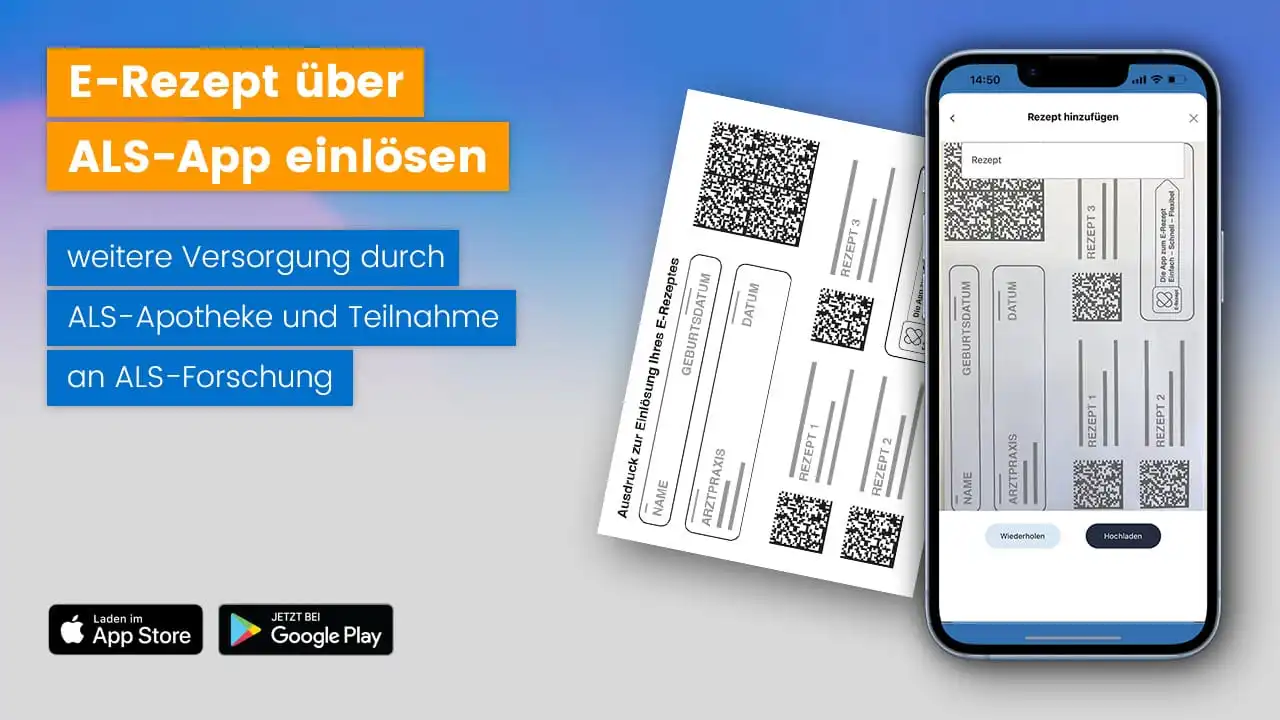
The e-prescription is currently being rolled out nationwide. It will replace the “pink paper prescription.” Important: Even with the e-prescription, you can continue to receive your medications from your ALS pharmacy and participate in ALS research. There are two steps to follow.
Step 1: Request a printed copy of the e-prescription
You will continue to receive the e-prescription for your neurological medication from your neurologist, just as you would with the traditional “pink prescription.” There are basically two ways to receive the e-prescription: (1) the doctor’s office provides you with a printed copy of the e-prescription, or (2) the e-prescription is stored in digital form on your health card.
To fill your e-prescription at your ALS pharmacy, you will need a printed copy of the e-prescription. Simply having the prescription stored on your health card is not sufficient to use the ALS pharmacy.
Please tell the clinic staff that you need a printed copy of the QR code to fill your prescription at your ALS pharmacy so that you can continue to enjoy the benefits of the ALS pharmacy.
****
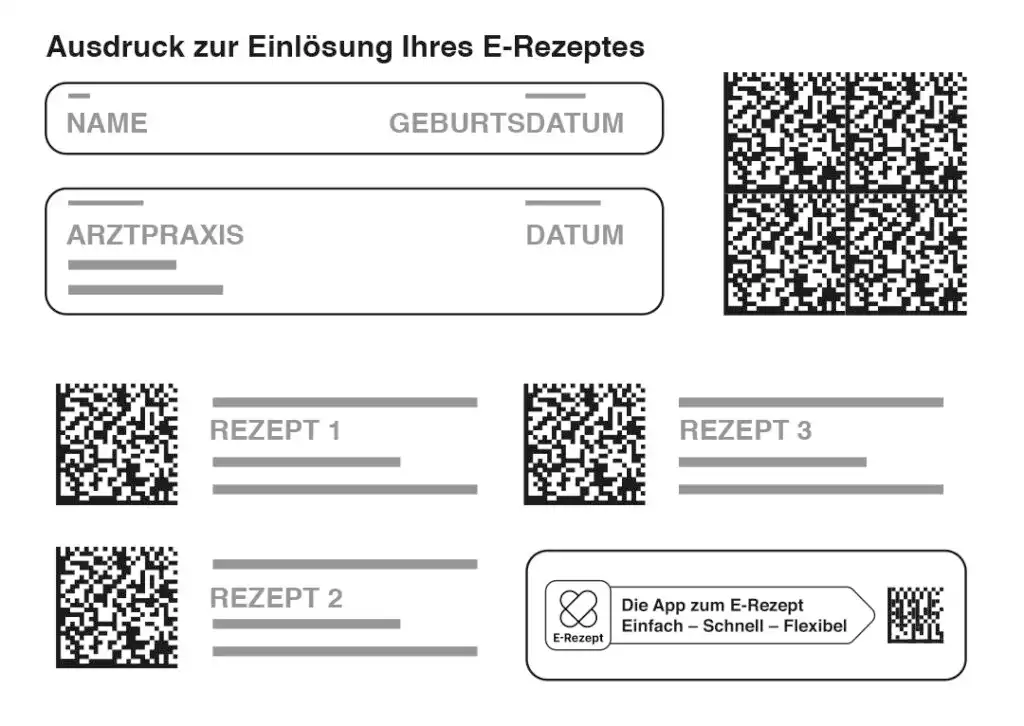
The new e-prescription will replace the “pink paper prescription.” Up to three medications, each with its own small code, can be entered on the e-prescription. The large code in the upper right corner is the collective code for all medications on the prescription. Image credit: BPI Federal Association of the Pharmaceutical Industry; Photographer: ©gematik GmbH
Step 2: Sending the e-prescription to outpatient care partners
Ambulanzpartner handles the coordination of prescriptions with your ALS pharmacy. You have two options for sending the e-prescription to Ambulanzpartner:
Option A: Take a photo of the e-prescription using the ALS app
With the ALS app, you can easily send an e-prescription using the scan and upload feature. It takes just 5 clicks.
- Place the printout of the e-prescription on a table
- Pick up your “cell phone” and open the ALS app
- Click 1 – “Supply” menu item
- Click 2 – “My Uploads” menu item
- Click 3 – “Add Recipe”
- Hold your “cell phone” over the e-prescription
- Click 4 – Black button at the bottom
- Click 5 – Upload
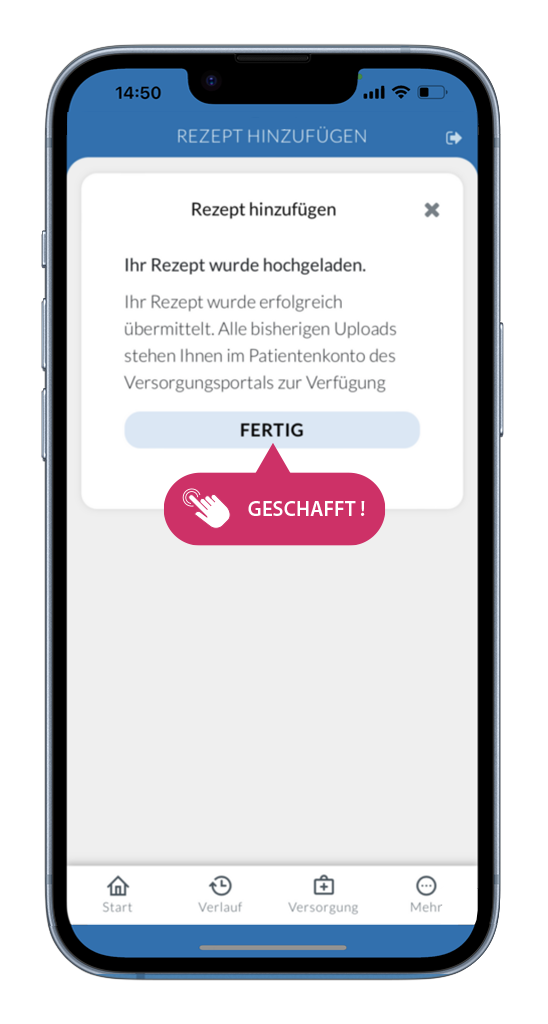
You made it!
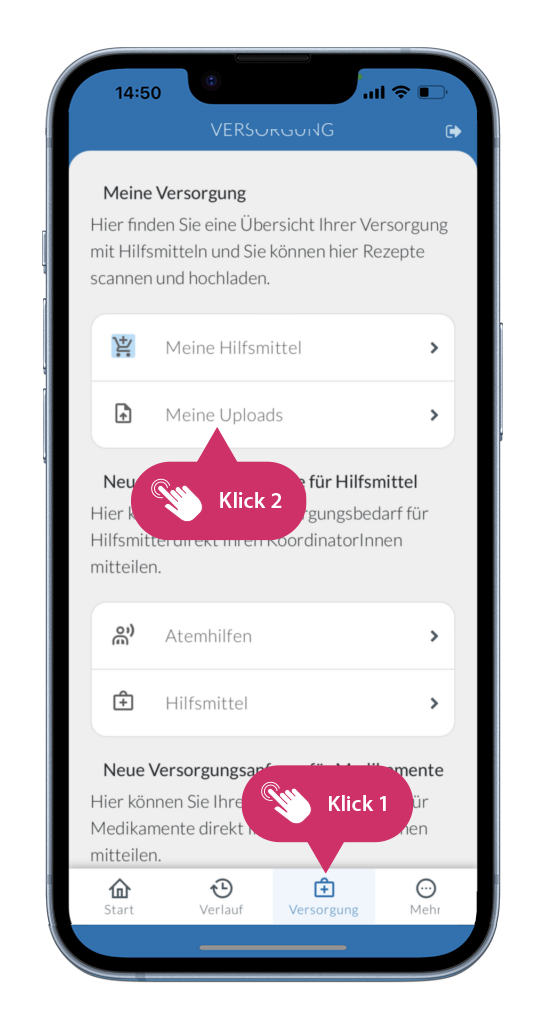
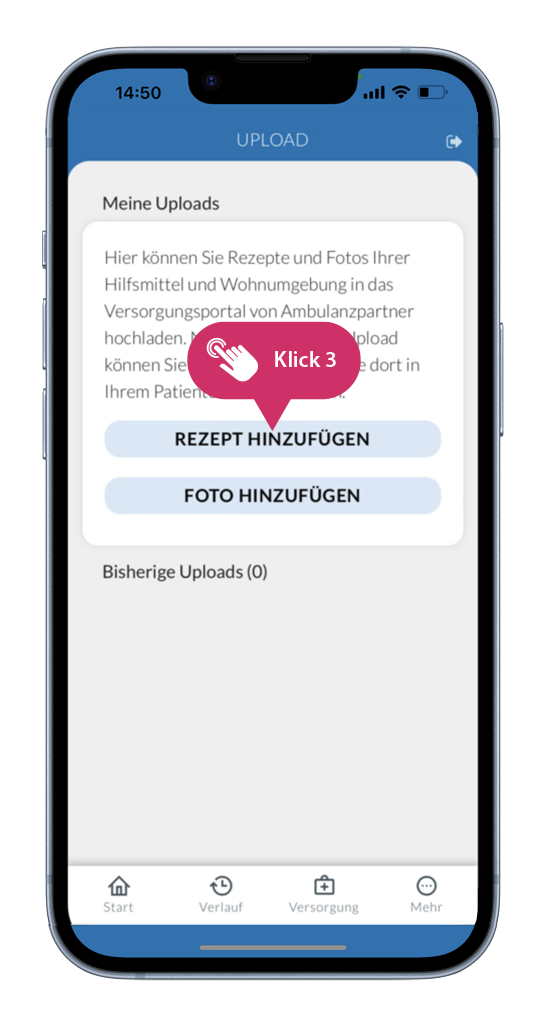
The ALS App – How to Upload an E-Prescription. Steps 1 through 3
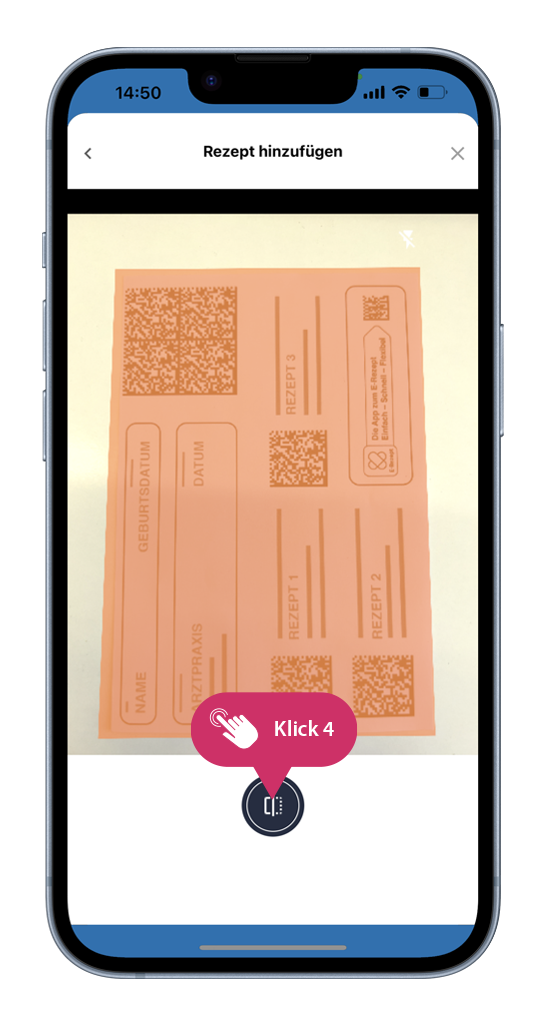
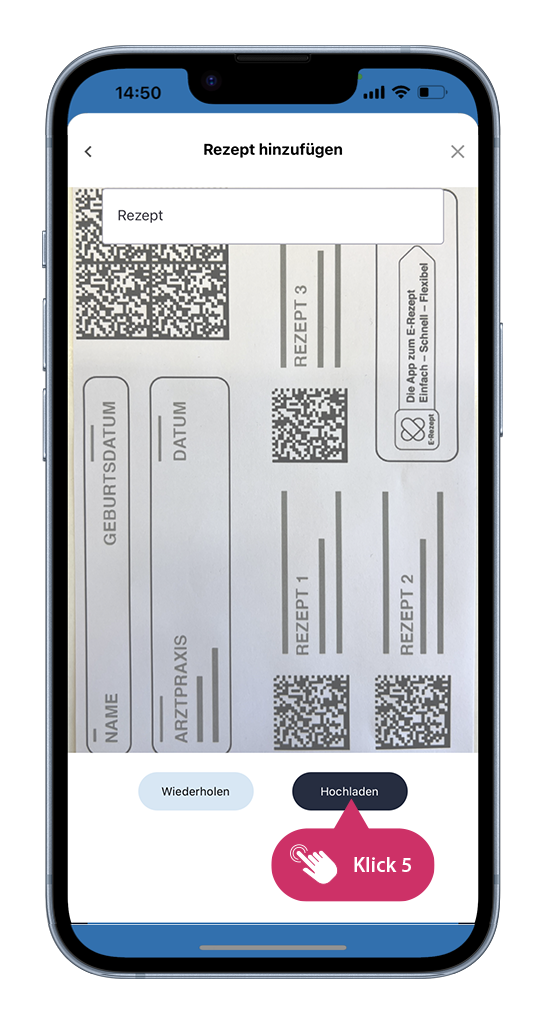
The ALS App – How to Upload an E-Prescription. Steps 4 & 5
After uploading the scanned recipe, a message will appear confirming that the upload was successful.
Using the procedure described above, your e-prescription is scanned with your cell phone’s camera. The scan of the prescription is then uploaded to your patient account on the Ambulanzpartner care portal. Your pharmacy in the ALS pharmacy program is automatically notified of the new prescription upload and can begin dispensing the medication.
Option B: Sending the e-prescription in a prepaid envelope
You can also send the e-prescription in a prepaid envelope. Contact us by phone or send us an email, and we’ll send you prepaid envelopes. When the prepaid envelope containing your e-prescription arrives at Ambulanzpartner, the prescription will be scanned there and sent electronically to the ALS pharmacy. This way, treatment can begin quickly.
Note for patients at the ALS Specialty Clinic: Procedures there will remain largely unchanged. Paper or electronic prescriptions issued there will be sent directly, so you do not need to take any action yourself.
Do you have any questions or need help?
If you need assistance or have any other questions, please do not hesitate to contact us. You can reach us at:
Email: apotheke@ambulanzpartner.de
Phone: 030-81031410
Your APST team
The current version of the ALS app is available to download free of charge from the Apple App Store and Google Play.